Pixelcut AI Photo Editor
- 4.2
- Rating
- 10.00M
- Installs
- Free
- Price

 Analysis by App-foxy
I opened Pixelcut AI Photo Editor expecting a quick background-removal tool, but it feels more like a compact design workspace for people who need polished images without learning a full desktop editor. I used it with the mindset of someone preparing product photos, social posts, simple promotional graphics, and everyday pictures that needed a cleaner finish. My overall impression is positive, although the app is most convincing when you want speed and convenience rather than complete manual control.
Pixelcut Inc positions this free Art & Design app around practical editing tasks: removing backgrounds, erasing unwanted elements, enhancing photos, building collages, and starting from story templates. Its average rating sits at 4.3 from roughly 221 thousand ratings, and the app has passed 10 million installs, so it is clearly being used well beyond a small group of design enthusiasts. That popularity makes sense, but it should not be mistaken for proof that it suits every workflow.
What using Pixelcut feels like in everyday work
The first thing I noticed is how strongly the app is built around getting from an ordinary image to a usable visual quickly. Instead of presenting a large collection of technical tools first, it encourages a result-oriented approach. I can begin with a photo, isolate the subject, clean up distractions, improve the appearance, or place the result into a more finished composition. That flow is especially useful when the image is going somewhere immediately, such as a marketplace listing or a social post.
You May Also Like

 Blood Strike: 2.5 Anniversary
Blood Strike’s Loadouts Turn Every Drop Into a Tactical Gamble
A close look at Blood Strike’s custom loadouts: how fast access to signature weapons reshapes its battle royale rhythm, rewards preparation, and narrows the gap between fights.

 Pandora - Music & Podcasts
Pandora’s Music Is Easy to Start, but Harder to Recover
Pandora’s strength is its low-effort path from a seed to a station. Its weak spot is how much confidence it asks you to place in connection, setup, and quiet recovery.

 8 Ball Pool
 Is Built on Rivalries, Rematches, and Routine
A close look at the rivalries, rematches, shared routines, and unanswered safety questions that turn a quick pool match into a persistent mobile community.

 Samsung Music
’s Quiet Strength Is Playing What You Already Own
Its reach comes less from spectacle than from dependable access to a personal library. That simplicity is both the app’s strongest retention engine and its ceiling.

 AccuWeather: Weather Radar
AccuWeather Review: A Quick, Clear Forecast for Everyday Decisions
For everyday plans, the best forecast is the one you can understand quickly. AccuWeather makes rain timing, radar, and local conditions easy to act on, with a few trade-offs.

 Hill Climb Racing
Why Hill Climb Racing Still Turns Crashes Into One More Run
A tiny car, a bumpy hill and one more upgrade: Hill Climb Racing keeps resurfacing because its simple chaos makes every near-miss feel personal.
More From Our News Desk



A realistic example is selling a used item online. I might photograph a lamp on a cluttered table, remove the background, erase a visible cable, improve the image slightly, and place the lamp on a cleaner backdrop. In a traditional editor, that could involve several separate tools and a fair amount of adjustment. Here, the appeal is keeping those jobs close together. I still need to inspect the edges and the final crop, but I am not forced to build the entire process from scratch.
The app also works well for small businesses and solo creators who do not have a dedicated design person. A café owner can prepare a simple story graphic, a craft seller can make product images look more consistent, and a freelancer can assemble a quick collage for a client preview. These are not advanced studio workflows, but they are exactly the situations where reducing setup time matters more than having every professional control available.
Pixelcut AI Photo Editor is free to install, and its content rating is Everyone, which makes it approachable for a broad audience. The free entry point is helpful for testing the workflow before spending anything. At the same time, in-app purchases range from $2.99 to $99.99 per item, so I would not assume that every useful tool or export option will remain available without a purchase. I would first create a few representative images and check which parts of my routine are unrestricted.
Background removal is the main reason to try it
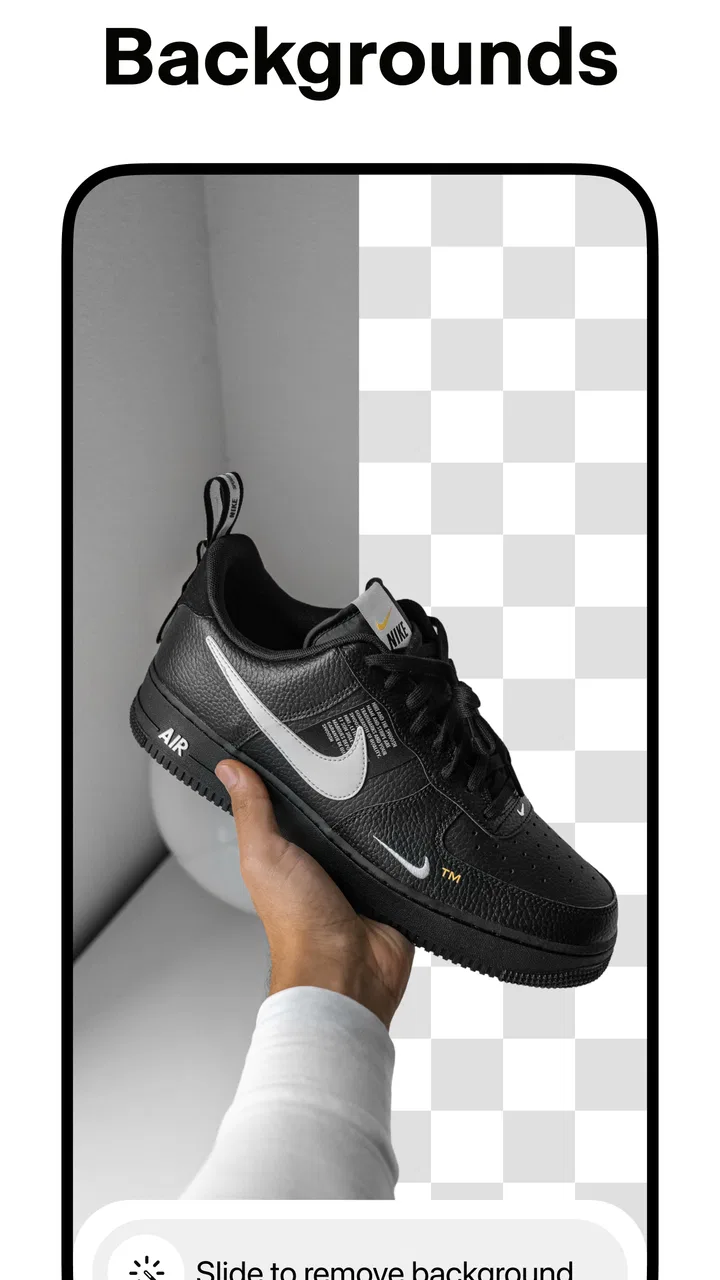
The strongest part of the experience is the background-removal workflow. It is useful because it turns a complicated selection task into something much faster for common subjects. People, clothing, packaged goods, furniture, and other clearly separated objects are the kinds of images where an automated cutout can save real time.
However, automatic selection is not magic. Fine hair, transparent objects, thin handles, plant leaves, and subjects that share colors with the background are more demanding. I would never publish a product image without zooming in around the outline. A slightly rough edge may be invisible in a casual post but immediately noticeable when the object is placed against a plain, contrasting background.
One practical tip is to photograph the subject with separation in mind before opening the app. Even lighting and a visible difference between the object and its surroundings give the automatic tool a better starting point. This is a more useful habit than repeatedly trying to rescue a poorly lit image. Pixelcut can simplify the edit, but it cannot fully replace a thoughtful original photo.
Another useful workflow is to keep the removed-background version for several purposes rather than treating it as a one-time edit. A clean cutout can be reused in a collage, a story design, a simple announcement, or a product comparison. That makes the initial cleanup more valuable, particularly for someone creating several posts around the same item.
Magic Eraser helps, but inspection still matters
The Magic Eraser feature is appealing for quick cleanup. I can imagine using it to remove a stray object, a distracting mark, or a small background detail that weakens an otherwise good photo. This is more convenient than opening a full editor just to deal with one visual nuisance.
The trade-off is that object removal depends heavily on what surrounds the selected area. A plain wall or simple surface gives the tool room to reconstruct the background convincingly. Repeating textures, text, fences, hair, and complicated shadows are harder. The result may look acceptable at first glance but become visibly smeared when viewed closely.
My preferred approach is conservative: erase small distractions in separate passes and check the image after each one. A large selection may be faster, but it also gives the editor more missing information to recreate. For a social image viewed on a phone, the result may be perfectly adequate. For a catalog image or a print-ready design, I would compare it with a more manual retouching tool before committing.
This is one of the app’s important boundaries. It is excellent for removing the visual friction that makes an image feel unfinished. It is less suitable when the edit must preserve exact texture, geometry, or fine detail. Knowing that difference prevents disappointment and keeps the tool in the role where it performs best.
Photo enhancement is useful when restraint is the goal
The photo-enhancement side is best approached as a finishing step, not a rescue button for every weak photograph. A slightly dull image may benefit from a cleaner, more presentable appearance, especially when it is destined for a post or listing. I like the idea of using enhancement after correcting the composition, because improving a badly framed image does not solve the underlying problem.
I would also compare the enhanced version with the original before saving or sharing it. Automated improvement can make a subject look clearer, but an aggressive result may introduce an artificial quality. This matters with faces, fabric, food, and product surfaces, where excessive sharpness or processing can make the image less believable. The best result is often the one that looks like a better photograph rather than an obvious filter.
A useful sequence is to crop first, remove unwanted elements second, and enhance last. Cropping changes what the viewer notices, while cleanup can alter the balance of the image. Enhancement works more predictably when those structural decisions are already finished. This simple order is one of the easiest ways to avoid spending time polishing details that later disappear outside the crop.
Templates and collages expand the app beyond single-image edits
The story templates make Pixelcut more relevant to people who publish regularly but do not want to design every post from a blank canvas. Templates can provide a starting structure for text, images, and spacing, which is useful when I need something presentable quickly. They are especially practical for announcements, product highlights, short promotions, and recurring content where consistency matters.
The limitation is that a template can also make a post feel familiar or less personal if I use it without changing enough. I would treat the template as a layout suggestion rather than a finished design. Replacing the main image, adjusting the wording, and keeping the visual hierarchy simple usually produces a more individual result than accepting every element unchanged.
Collage creation is helpful when one image does not tell the whole story. For example, I could show a product from several angles, combine before-and-after images, or place a detail shot beside the full scene. The main trade-off is visual discipline. Too many images, competing crops, or uneven margins can make a collage feel busy. Pixelcut can assemble the pieces, but I still need to decide what deserves attention.
This is where the app compares favorably with a basic gallery editor. A gallery editor is often faster for rotation, cropping, and simple adjustments, while Pixelcut is more focused on turning separate assets into something intended for sharing. On the other hand, a full design platform will usually offer deeper typography, layer management, and brand controls. I would choose Pixelcut when speed and image-focused automation matter more than building a highly controlled visual system.
Trust depends on what I can see and control
Because this editor is designed around personal photos and potentially commercial images, I pay attention to the moments where the app asks me to choose what happens next. Before editing a sensitive image, I would review the visible permission request and grant only the access needed for the task. I would also avoid importing private documents, identity images, or confidential client material unless I am comfortable with the app’s current privacy choices and controls.
The important point is not to assume that an AI editing label automatically explains every data practice. I look for clear in-app choices, readable account settings, and an understandable way to manage content or stop using the service. If an image is sensitive, I prefer to test the workflow with a non-sensitive copy first. That gives me a chance to understand the editing process without exposing material that cannot easily be replaced.
I would also check whether I am signed in, whether the app offers account controls, and what options are visible for managing my use. Those checks are especially relevant when I am working with client photos or images that contain other people. A convenient editor is valuable, but convenience should not encourage me to upload everything automatically or ignore the context of the image.
There is a practical privacy habit that applies here: keep the original file separate from the edited version. I would duplicate an important photo before removing a background or applying enhancement, then review the saved result independently. This protects the original and makes it easier to compare what changed. It also gives me a clean fallback if an automated edit produces an edge, texture, or color problem that I notice later.
Who will get the most value from it?
I think Pixelcut is a strong match for marketplace sellers, social media users, small business owners, students preparing visual projects, and anyone who frequently needs a clean image without becoming an editing specialist. It is particularly attractive when the same person is taking photos, editing them, and publishing them. The reduced switching between separate apps can be more valuable than any single tool by itself.
It also suits people who prefer guided results over technical experimentation. If I want to remove a background, create a simple story graphic, or assemble a collage without learning selections, masks, and layers, the app gives me a more comfortable starting point. The free installation makes it easy to judge that convenience with my own images.
I would be more cautious about recommending it to a professional retoucher, a designer who needs exact brand systems, or someone preparing high-stakes print work. Those users may need precise masks, detailed color management, advanced typography, and reliable control over every layer. A desktop editor or a more comprehensive design application is likely to be better when small visual differences have serious consequences.
I would also skip it if my main goal is purely manual editing. Pixelcut’s appeal comes from automation and ready-made workflows. Someone who enjoys adjusting every curve, selection, and layer may find the experience less satisfying than a traditional editor. The question is not whether one category is universally better; it is whether the time saved is worth giving up some control.
Device details, cost, and what to check before committing
The app was released on September 27, 2021, and the current version is 0.9.40. It requires Android 7.0 or later, so compatibility is fairly approachable for many Android users, though I would still check the device’s available storage and performance before planning a large batch of edits. AI-assisted image processing can feel less comfortable on older hardware, particularly when working with large photographs or several assets in one project.
The free price is a genuine advantage for trying the core experience, but the purchase range means the long-term cost depends on how often I use premium capabilities. A casual user may be satisfied with occasional editing, while a seller or creator who relies on the app every week should inspect the purchase prompts carefully and decide whether the workflow remains worthwhile. I would not subscribe or buy an item simply because a feature appears at the exact moment I am in a hurry.
Before making Pixelcut part of a business routine, I would run a small test batch. I would use one product photo, one portrait, one image with a complicated background, and one collage or story design. That reveals more than trying a single perfect photograph. It shows whether the cutout edges, cleanup, enhancement, and layout tools match the kind of material I actually publish.
My cautious verdict after using the workflow
Pixelcut AI Photo Editor earns my recommendation for fast, image-centered design. Its combination of background removal, Magic Eraser, enhancement, story templates, and collage creation gives it a clear identity: it helps turn ordinary photos into shareable visual assets without demanding a full design education. I especially like it for product listings and quick social content, where a clean result delivered promptly is often more useful than unlimited technical depth.
My recommendation comes with conditions. I would inspect automated edges, compare enhancements with the original, keep important files backed up, and make deliberate choices around permissions, account controls, and sensitive images. I would also watch the purchase prompts rather than assuming that free installation means every workflow is free.
My bottom line is simple: choose Pixelcut when you value speed, guided AI editing, and practical image cleanup; choose a fuller editor when precision, privacy requirements, or detailed manual control matter more. For the right user, it can remove several annoying steps from everyday content creation. For the wrong user, its automation may feel like a shortcut that stops just before the level of control they need.
FAQs for Pixelcut AI Photo Editor
01What features does Pixelcut AI Photo Editor offer?
Pixelcut AI Photo Editor provides a comprehensive suite of tools for photo editing, including background removal, AI-powered enhancements, filters, and retouching options. It also offers templates for social media content creation, making it ideal for both casual users and content creators looking to enhance their visual assets.
02Is Pixelcut AI Photo Editor free to use?
Pixelcut offers both free and premium versions. The free version includes basic editing tools, while the premium subscription unlocks advanced features such as high-resolution exports, additional filters, and priority support. Users can choose the plan that best fits their editing needs and budget.
03How user-friendly is Pixelcut AI Photo Editor for beginners?
Pixelcut AI Photo Editor is designed with an intuitive interface, making it accessible for beginners. The app provides tutorials and guided steps for each feature, ensuring users can easily navigate and utilize the tools without previous experience. Its AI-powered functions simplify complex edits, enhancing the user experience.
04Does Pixelcut AI Photo Editor support multiple file formats?
Yes, Pixelcut AI Photo Editor supports a variety of file formats, including JPG, PNG, and HEIC. This compatibility ensures users can edit and export images in formats that suit their specific requirements, whether for web use, printing, or sharing across different platforms.
05Can I use Pixelcut AI Photo Editor on both Android and iOS devices?
Absolutely. Pixelcut AI Photo Editor is available for both Android and iOS platforms. Users can download the app from the Google Play Store or the Apple App Store, ensuring seamless access to its features across different devices and operating systems.
Pros
- Intuitive interface
- easy for beginners.
- AI tools enhance editing speed and precision.
- Variety of filters and effects available.
- Supports high-resolution exports.
- Regular updates with new features.
Cons
- Subscription required for full access.
- Some features need stable internet.
- Occasional ads in the free version.
- Limited free trial period.
- Can drain battery quickly during use.

Pixelcut AI Photo Editor
Gallery